 TuneFinderDocumentation
Purchases and settings · iOS · Android
Search access and app language
Understand free and purchased search, restore access, and choose your app language.
On this page
Free and Multi-Book Search
Personal PDF import, manual indexes, OCR drafts, and choosing one indexed search book do not require Multi-Book Search. The purchase enables simultaneous search across several indexed books. Keeping many books or receiving their files through sync does not establish purchase ownership.
An index must still be saved and its PDF available to open a result. Multi-Book Search does not supply PDF documents or improve OCR recognition.
Open purchase and restore controls
- Open Settings using the gear button.
- Tap Multi-Book Search.
- To purchase, use the purchase button and confirm the price in the platform’s store. To recover an existing purchase, use Restore purchase with the store account that bought it.
- Wait for confirmation. If access is already enabled, the screen offers Choose your books to return to your library.
The entry is available on iOS and Android, including when cloud sync is unavailable. Opening Settings does not start a purchase. Purchase or restoration still requires the platform’s store to be available.
Purchase and restoration
If you cannot open the purchase or restoration controls, contact support rather than deleting your library or purchasing again.
The app can recognize an existing store purchase at startup. Use the store account that bought it. Where the restoration screen is accessible, Restore purchase requests the store’s existing entitlement; wait for its confirmation before expecting multi-book results.
Purchases belong to the platform’s store account. Do not assume an App Store purchase transfers to Google Play, or that PDF synchronization transfers a purchase. If restoration fails or reports no purchase, report the platform, app version and result to support. Never send account passwords or payment details.
Change app language
- Open Settings with the gear button.
- Find the app language section.
- Choose English, French, Portuguese, German, Spanish or Italian, or the device-language option.
- Check that the app controls change to the selected language.
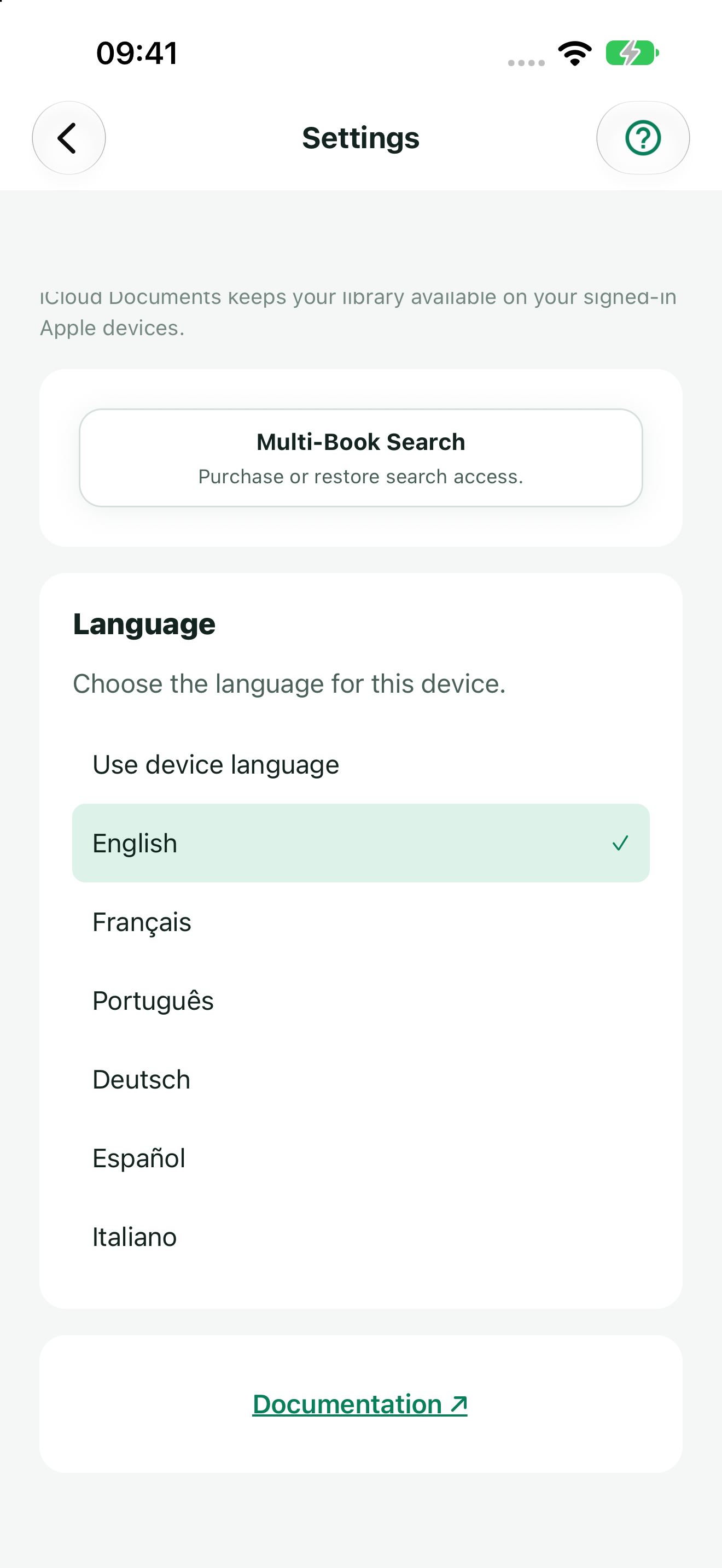
App language is a device preference and is not synchronized with the library. It does not translate your document names, PDFs or tune titles. Choosing the website language changes the guides, not the app language.
The documentation also remembers your iOS/Android choice in this browser. Change the platform selector when reading instructions for another device; no cloud account is needed.