 TuneFinderDocumentation
Indexes and title detection · iOS · Android
Detect and review tune titles
Create an editable index with on-device OCR, check the suggestions, and save it.
On this page
What detection does
OCR reads printed text in your PDF and proposes tune titles and page ranges. It runs on the device; TuneFinder does not send the PDF to an OCR service. The proposed index enters search only after you review and save it.
Start with an imported PDF. An index is a list of titles and their PDF pages; it is separate from the PDF itself.
Detect titles
- Open Books and tap the book.
- Tap Detect tune titles. The index editor opens and starts detection.
- Keep TuneFinder in the foreground while pages are processed.
- When detection finishes, review the proposed entries in the editor.
Pause and resume
Tap Cancel during detection to pause after the current page. Backgrounding the app also interrupts detection. Your PDF and completed-page progress are kept. Return to the book and tap Detect tune titles again to resume.
If you have unsaved manual edits, finish or discard those edits before starting detection. Replacing the PDF can invalidate an earlier draft; generate a new index for the replacement rather than applying old suggestions.
Review and save
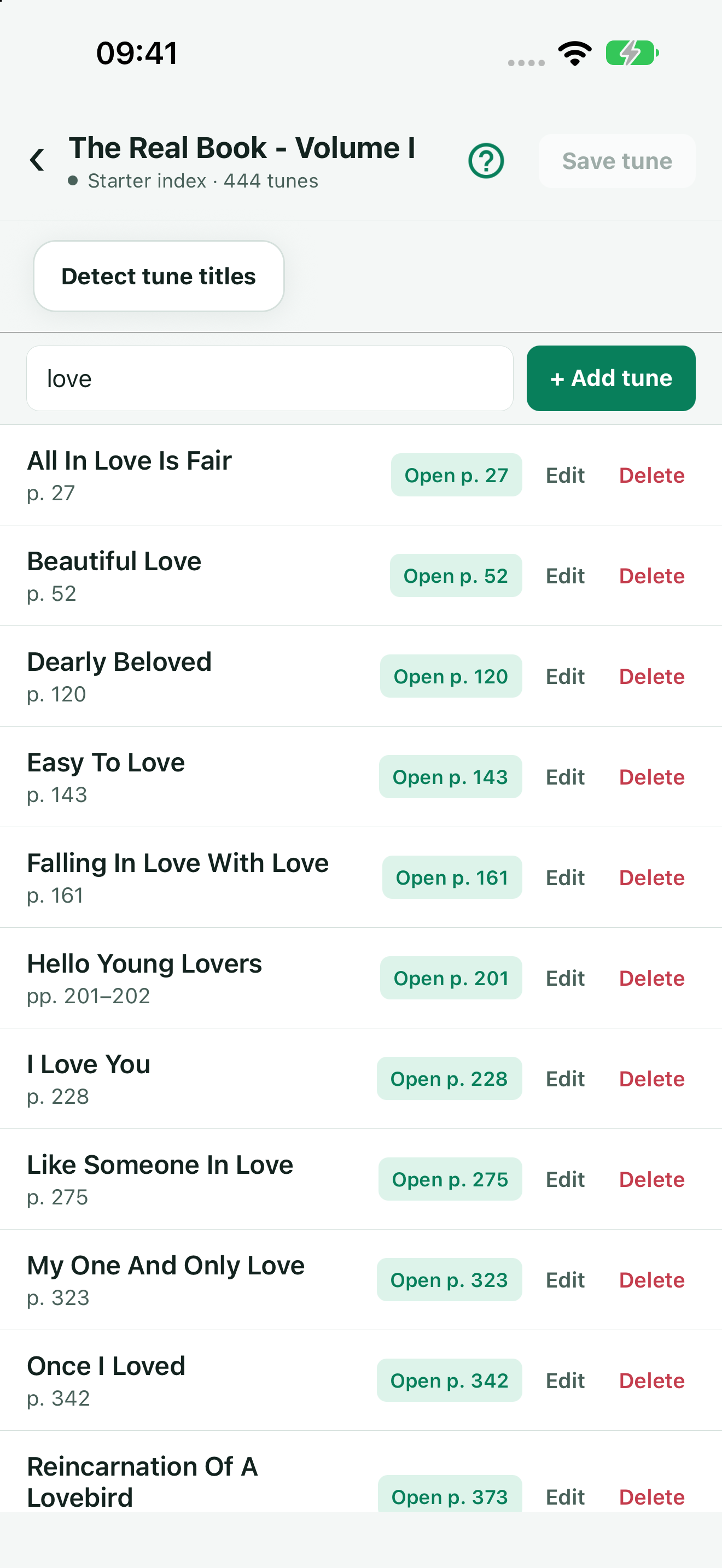
- Check each proposed title and its first and last PDF pages.
- Open PDF pages from the editor to compare the title and page range with the document. PDF page numbers may differ from printed page numbers.
- Use Edit, Delete, or Add tune to correct mistakes or supply missing entries.
- Tap Save tune when the index is ready.
- Return to the book details. For free single-book search, tap Use for search if the book is not already selected.
Improve an imperfect result
Clear printed Latin text works best. Handwritten headings, decorative fonts, skewed or faint scans, contents pages, and multiple tunes on one page can produce missed or incorrect titles. Detection cannot identify a tune from notation alone.
Check consecutive page ranges carefully: repeated headings may be joined into one range, while untitled continuation pages may need manual corrections. If detection finds no titles, create entries manually; your imported PDF remains available.
Rebuild or recover
Removing an index does not prevent detection while the PDF is still available. Open the book details and tap Detect tune titles to rebuild it. If the PDF is unavailable, restore or choose its PDF before retrying. Do not delete your library to repair a recognition failure.
If an error persists, contact support with your app version, platform, action, and displayed error reference. For optional synchronization of accepted indexes, see Synchronization.