 TuneFinderDocumentation
Search and reading · iOS · Android
Search and read PDF pages
Select a search book, find titles, and open the right PDF page.
Choose the free search book
- Open Books and tap a book with an accepted index.
- Tap Use for search if it is not already Selected for search.
- Return to Search.
You can change this selection for free. Other books and indexes remain in the library. Multi-Book Search enables simultaneous search across indexed books; synchronized files alone do not unlock it.
Search a title
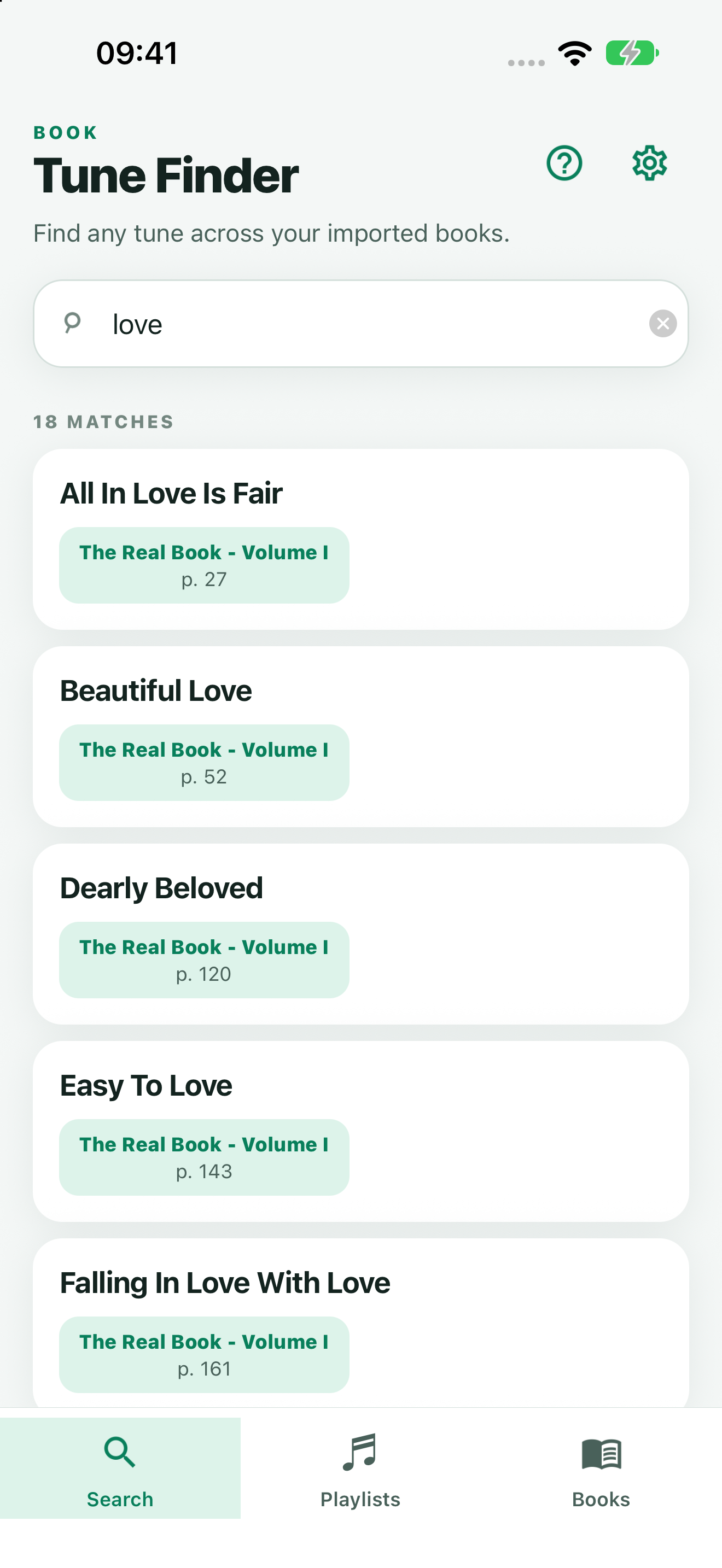
- Type part of the title in Search.
- Read the book name and PDF page or range beside each result.
- Tap the desired result to open its PDF.
Search uses accepted index text, not all PDF text. Save OCR suggestions or manual edits before expecting them in search. Repeated titles can appear on different pages or in different books.
Read and add a tune
Scroll through the PDF pages. Tap a page to hide or reveal the navigation controls. The viewer’s + button adds the displayed tune to a playlist; see Playlists.
You can also open a book’s PDF from its details without an index. If the result opens the wrong page, edit the index’s PDF page range, rather than changing the original PDF.
Missing results or PDF
Check the selected book, saved index, title spelling, and whether the PDF is present. Try a shorter title. An index can be available even when its PDF is missing, so finding a result does not establish that its pages can be opened. Restore the matching PDF in book details and retry.
A playlist reference may retain an older title/page after an index correction. Verify it and replace that playlist entry if needed. Troubleshooting covers persistent failures.