 TuneFinderDocumentation
Sync and recovery · iOS · Android
Synchronization
Synchronize your library with iCloud on iPhone/iPad or Google Drive on Android.
On this page
Before connecting
Your library works locally without a cloud connection. Synchronization is optional and requires an internet connection. iPhone and iPad use iCloud Documents; Android uses Google Drive. Use the same cloud account on the devices of each platform that you want to synchronize.
TuneFinder does not synchronize libraries between iOS and Android. Choose your platform above for the matching instructions.
Connect your account
iPhone and iPad: iCloud
- Sign in to iCloud on the device and enable iCloud Drive for TuneFinder in the device settings.
- Open Settings in TuneFinder using the gear button.
- Tap Enable iCloud sync when iCloud is available.
- Wait for synchronization to finish and check the status.
- Enable synchronization on your other iPhone or iPad using the same iCloud account.
If iCloud is unavailable, check that you are signed in and iCloud Drive is enabled. The example below shows this unavailable state; your local library remains usable.
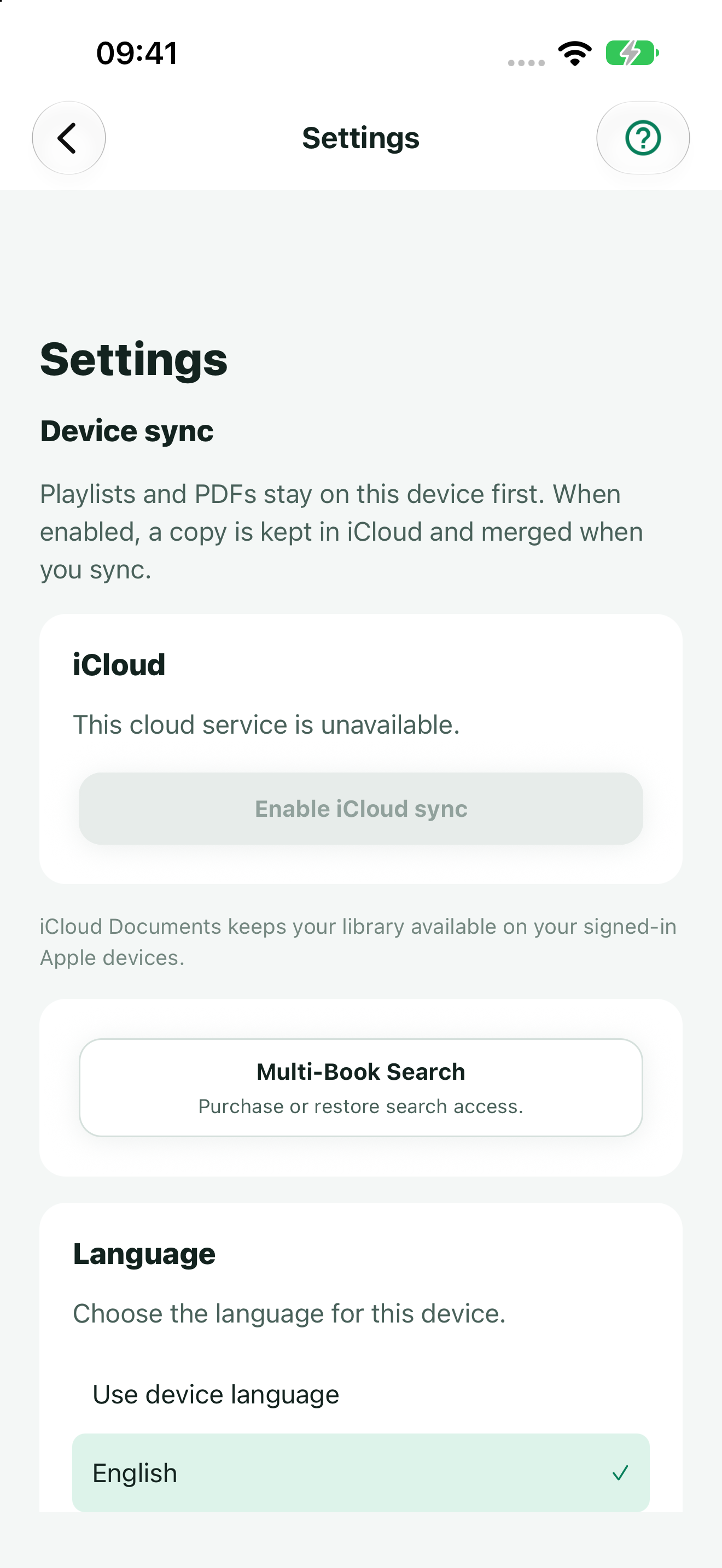
To stop synchronization, tap Pause iCloud sync. This keeps both the local and iCloud library copies. Enable synchronization again to resume; keep devices with outstanding edits available so their changes can synchronize.
Android: Google Drive
- Open Settings using the gear button.
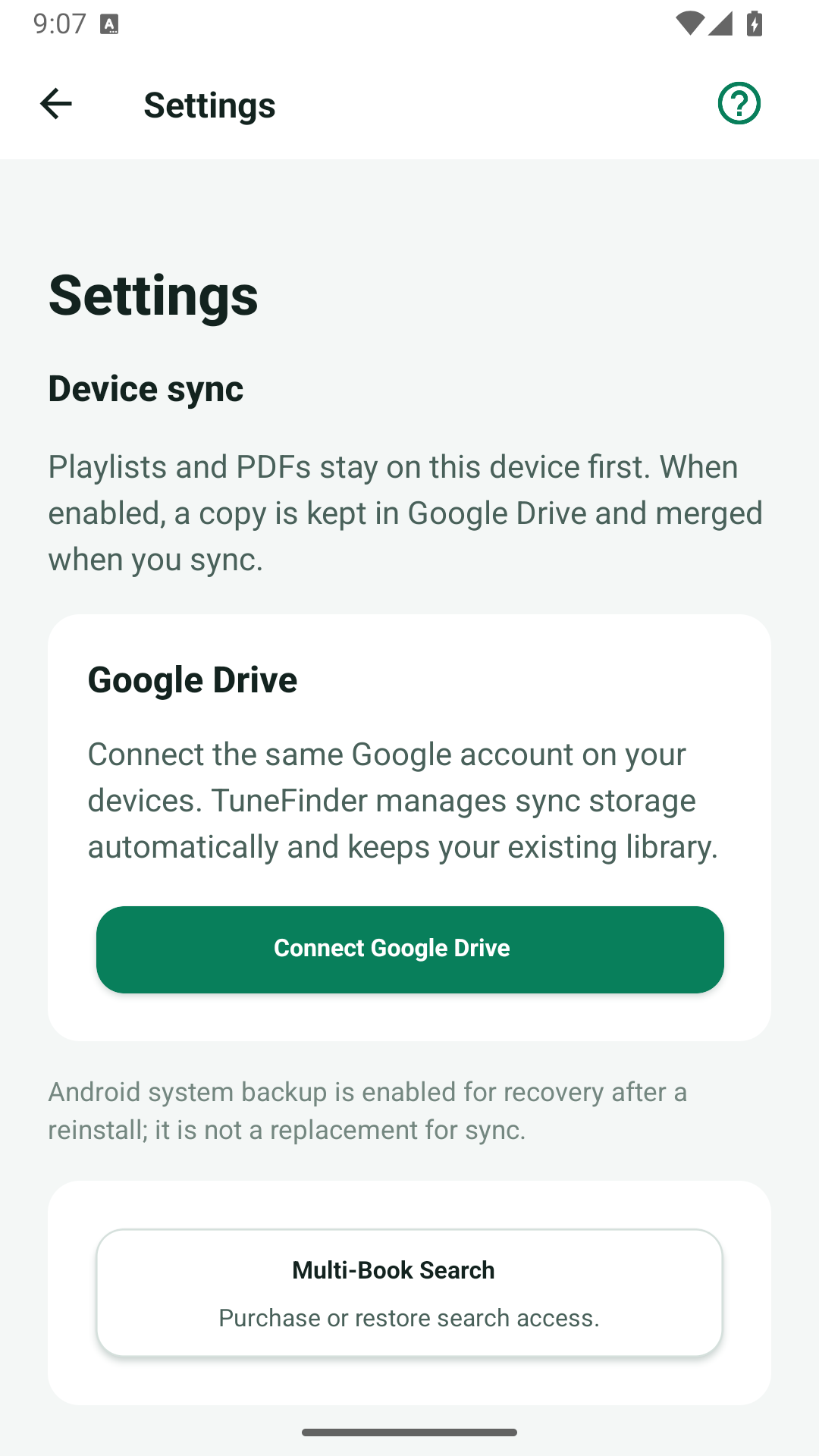
- Tap Connect Google Drive.
- Choose your Google account and approve the requested access.
- Wait for the initial synchronization and check the status before leaving the screen.
- Repeat these steps with the same account on your other Android devices, including devices that have local edits.
TuneFinder creates and manages its TuneFinder Sync folder in Drive. You do not choose a folder in the file picker. If you cancel account selection or decline access, your local library stays available.
What synchronizes
Accepted book PDFs, indexes, book names, and playlists participate in synchronization. Unsaved index edits and OCR checkpoints stay on their original device. Save an index before expecting it on another device.
All indexes may synchronize, but free search still uses only one selected indexed book. Cloud files do not unlock Multi-Book Search.
When changes arrive
TuneFinder synchronizes after launch when the provider is ready, and after accepted local playlist or book changes. It does not continuously poll for changes or start synchronization merely because you return to the foreground.
To request an update, open Settings and tap Sync now, or pull to refresh Books or Playlists. Repeat a manual sync on the other device when checking that a change has arrived. Wait for both devices to finish before comparing.
Connection or sync trouble
Check your internet connection, cloud account (iCloud on iOS or Google on Android), and available device and cloud storage. On Android, use Reconnect Google Drive if authorization needs refreshing. On iOS, check that iCloud Drive is enabled and synchronization is not paused. Keep the same intended account; do not switch accounts as a repair attempt.
Large PDFs can take time to transfer. A failure does not mean you should delete and reimport your library. Keep local copies and original PDFs. If TuneFinder shows a conflict, compare the copies before choosing which to keep; do not assume the cloud copy is newer.
For TF-SYNC-4300 or another displayed reference, contact support with the app version, iOS or Android version, the action, and the reference. On Android, system backup is a separate recovery mechanism and does not replace synchronization.
To add a new document, follow Import and share a PDF, then detect and review its titles.