 TuneFinderDocumentation
Books and PDFs · iOS · Android
Manage books and files
Find, rename, replace or remove library items without confusing PDFs and indexes.
On this page
Find a book
Open Books and use its search box to filter names. The list is alphabetical; it shows whether the PDF and index are available. Tap a row for the actions belonging to that book.
Use the catalogue
- In Books, tap Browse catalogue.
- Choose a book matching your edition.
- Use Download index when a starter index is available, and Choose PDF… to link your copy.
- Check the PDF pages before relying on the starter index. Different editions can have different pages or titles.
The catalogue does not provide copyrighted PDFs. Books with local PDFs or indexes appear in your library. A starter index is a starting point; edit it to match your document.
Rename a personal book
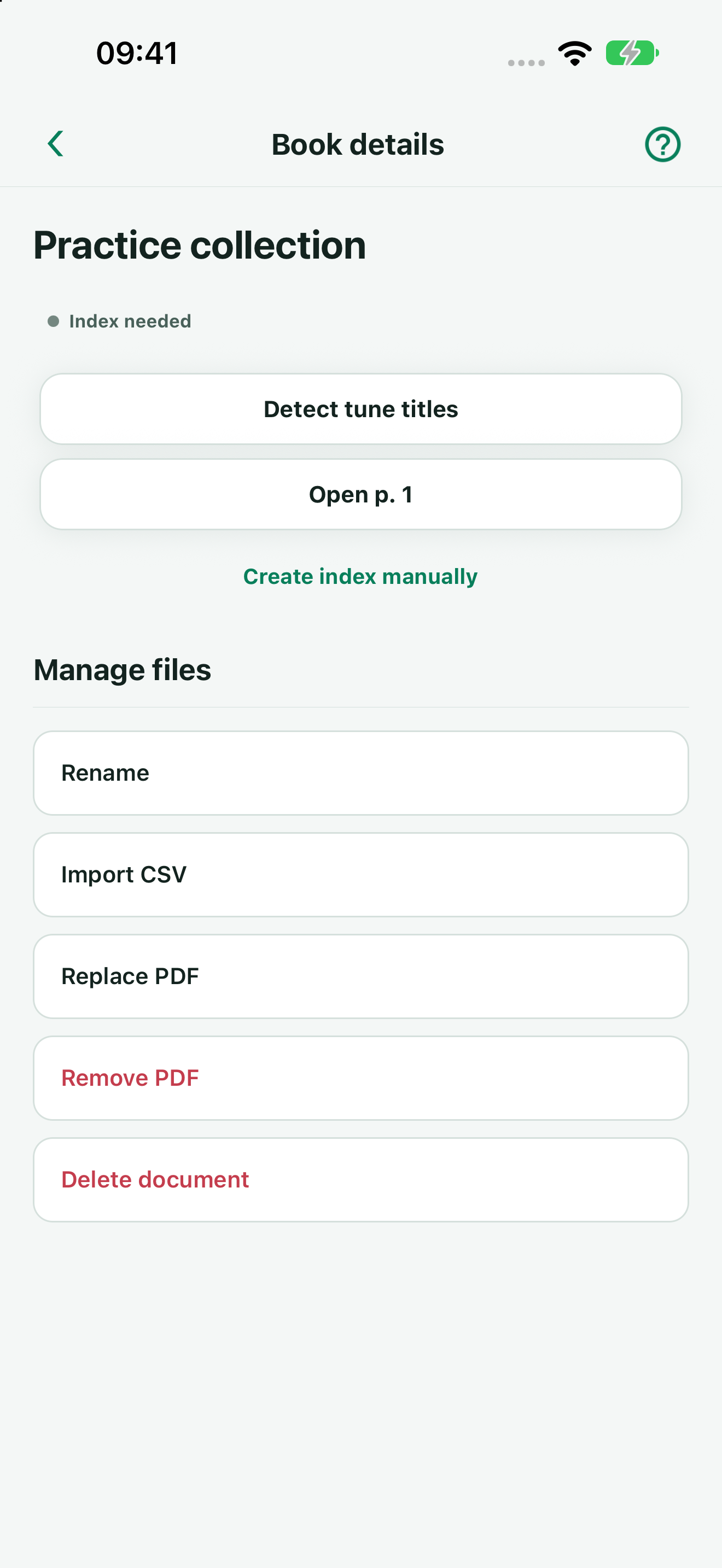
- Open the imported book’s details and find Manage files.
- Tap Rename, enter the name, and tap Save changes.
- Return to the library and search for the new name.
Renaming changes the display name and preserves the book’s identity and playlist references. Catalogue names are not renamed with this action.
Replace or remove files
Use Replace PDF to choose a replacement. Keep the original until the replacement has opened successfully. The existing index may no longer match; review its pages or generate a new one.
Remove index removes the accepted index, leaving the PDF available. Remove PDF removes the library’s PDF copy, leaving the index available. Confirm the requested action only after checking which book is open. If synchronization is enabled, these accepted deletions can propagate to the same-platform devices; paused/offline deletion is retained for later synchronization.
Delete a personal book
Use Delete document in an imported book’s details and confirm. This removes that personal book’s library assets. It does not delete the original PDF in the source app. Existing playlist references are retained and may become unavailable; remove or repair them deliberately rather than assuming they were deleted too.
Removing assets is not a repair step for a sync or OCR error. Troubleshooting explains safer checks.