 TuneFinderDocumentation
Playlists · iOS · Android
Prepare and manage playlists
Create a performance collection, add tunes, and arrange their order.
Create a playlist from a tune
- Open a tune from search and tap the viewer’s + button.
- Choose New playlist, enter a name, and create it with the displayed tune.
- Open Playlists to find the new collection.
A playlist is the app’s ordered collection for practice or performance. Creating one does not copy its PDFs or change their indexes.
Add more tunes
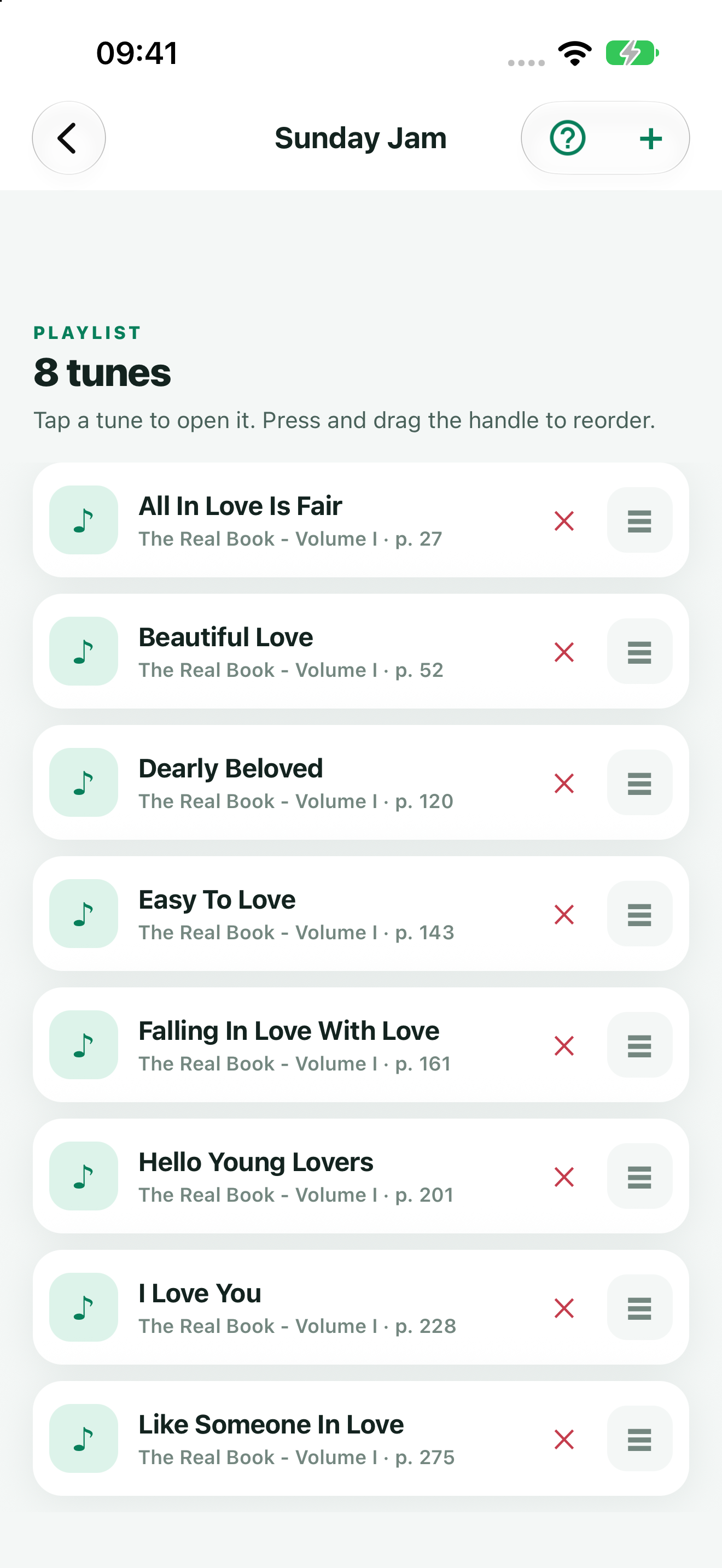
- Open the playlist and tap +.
- Search for a title in your searchable books.
- Add a result, then continue searching to add more before closing the picker.
The picker marks tunes already added, but you can add another occurrence intentionally. The free search selection also applies when finding tunes to add.
Rename, sort and reorder
In Playlists, use the search box to find a name. The sort control offers name order or modification time. Use the edit control beside a playlist to rename it; renaming preserves its entries.
Inside a playlist, hold the reorder handle and drag an entry to its new position. Tap an entry to open its PDF. Use Remove on an entry and confirm to remove that occurrence only.
Delete or recover
Use Delete beside a playlist and confirm to remove the playlist and its order. Book PDFs and indexes are kept. If synchronization is enabled, the playlist deletion can propagate to other devices on that platform.
A missing PDF or deleted personal book can leave a retained reference that cannot open. Restore the matching book/PDF or replace the entry with a new search result. Changing an index does not guarantee that existing playlist page references are rewritten.
For changes on another device, follow Synchronization. Keep local copies and avoid deleting a playlist as a sync repair attempt.